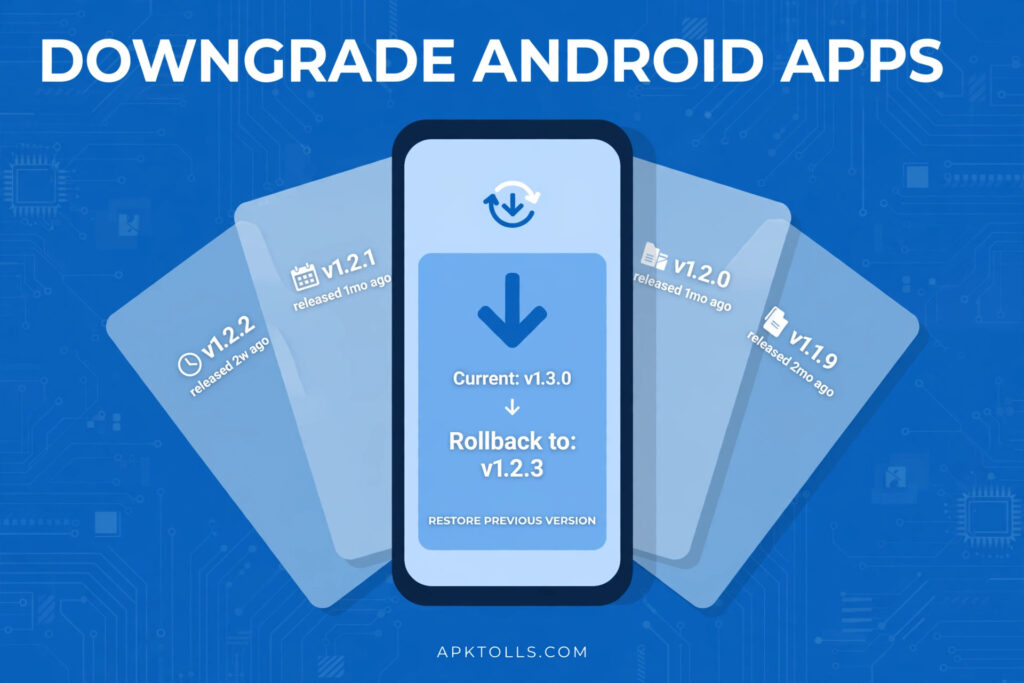
An update can remove a favorite feature, introduce bugs, or make an app feel sluggish on an older phone. When that happens, going back to the previous version is often the quickest fix. Android does not offer a built-in “roll back” button for most apps, but downgrading is entirely possible if you follow the right steps and protect your data first.
This guide walks you through both methods — the simple “uninstall updates” option for preinstalled apps, and the full manual method using an older APK file — plus how to stop the app from updating itself again afterwards.
Before You Downgrade: 3 Things to Know
1. You usually have to uninstall the current version first. Every Android app carries a version code, and Android refuses to install a package with a lower version code on top of a higher one. There is no way around that check in a normal install, so a manual downgrade almost always means removing the current version first.
2. Uninstalling deletes the app’s local data. Accounts, settings, saved files, and offline downloads stored inside the app are wiped when you uninstall it. Data that the app syncs to its own cloud account is safe, but anything stored only on the phone is gone unless you back it up first.
3. The older APK must carry the same signature. Android apps are digitally signed by their developer. If you try to install an older build signed with a different certificate than the original, Android rejects it with a signature or “app not installed” error. In practice, this means you should only use older versions released by the original developer — a point we cover in more detail in our guide on whether APK files are safe.
Option 1: Uninstall Updates (Preinstalled Apps Only)
If the app came preinstalled on your phone — things like Gmail, Chrome, YouTube, or your manufacturer’s own apps — Android gives you a built-in rollback:
- Open Settings > Apps > See all apps and tap the app.
- Tap the three-dot menu in the top-right corner.
- Choose Uninstall updates and confirm.
The app returns to the version that shipped with your phone’s firmware. The limitation is obvious: you can only go back to that factory version, not to an arbitrary release from, say, two months ago. For a specific older release, use the manual method below.
Option 2: Manually Install an Older APK
Step 1: Back Up the App’s Data
Before uninstalling anything, check the app for a built-in backup or export option, and confirm your account is signed in so cloud data syncs. For chat and media apps, run a manual backup inside the app. If the app holds data that exists nowhere else, think twice before downgrading at all.
Step 2: Download the Older Version from a Trusted Source
Find the exact version number you want (it is shown at the bottom of the app’s page in Settings > Apps), then download that version’s APK from a reputable archive or the developer’s own site. Avoid random file-hosting links: a tampered APK is the single biggest risk in this whole process. Our step-by-step walkthrough on how to install APK files on Android safely covers how to vet the file and install it.
Step 3: Uninstall the Current Version
Long-press the app icon and tap Uninstall, or remove it from Settings. Wait a few seconds for the removal to finish completely before installing the older build.
Step 4: Install the Older APK
Open the downloaded APK file and allow your browser or file manager to install unknown apps if prompted. Installation should complete normally now that the newer version is gone. Open the app, sign back in, and restore your backup if the app offers one.
Advanced: Downgrade with ADB Without Losing Data
If you use ADB (Android Debug Bridge) on a computer, the command adb install -r -d path\to\app.apk tells Android to allow a downgrade while keeping the existing app data in place. This works because the -d flag explicitly permits the lower version code. Two caveats: the older build still has to share the same signature, and the older version may crash or misbehave if the newer version changed its internal data format. Use it when preserving data matters, but back up first anyway.
Stop the App From Updating Again
A downgrade is pointless if the Play Store updates the app again overnight. To prevent that for a single app:
- Open the app’s page in the Play Store.
- Tap the three-dot menu in the top-right corner.
- Uncheck Enable auto update.
You can also disable auto-updates for everything in Play Store settings, but a per-app block is safer — it keeps security updates flowing for your other apps. Remember that you will now need to update this app manually if you ever want a newer build; our guide on how to manually update Android apps explains that side of the process.
Common Problems (and Fixes)
- “App not installed” error: Almost always a signature mismatch — the older APK was not signed by the same developer. Get the file from a source that preserves original signatures.
- The downgraded app keeps crashing: Leftover data from the newer version is incompatible. Clear the app’s data from Settings, or uninstall and reinstall the older build cleanly.
- The app refuses to work on the older version: Some banking, payment, and streaming apps enforce a minimum version on their servers. With those, downgrading simply is not an option.
Is Downgrading Safe?
Downgrading carries one real trade-off: older builds do not have the latest security patches. Running an older version for a few weeks to dodge a bad update is reasonable; running a year-old build of a browser or banking app is not. Treat a downgrade as a temporary measure, check whether the developer has fixed the problem in a newer release, and move back to the current version once they have.
FAQ
Can I downgrade an app without uninstalling it?
Only preinstalled apps, using “Uninstall updates” — and only back to the factory version. For everything else, downgrading without uninstalling requires ADB with the -d flag, or root access.
Will I lose my data when I downgrade?
If you uninstall first, yes — local app data is deleted. Cloud-synced data returns when you sign back in. The ADB method preserves data in place, but a backup is still strongly recommended.
Why does Android block downgrades in the first place?
The version-code check prevents accidental or malicious replacement of an app with an older, more vulnerable build, and protects newer data formats from being read by older code that cannot understand them.
Key Takeaways
- Back up before anything else — uninstalling deletes local data.
- Preinstalled apps roll back via “Uninstall updates”; other apps need a manual older-APK install.
- The older APK must have the developer’s original signature.
- Turn off auto-update for that one app so the Play Store does not undo your work.