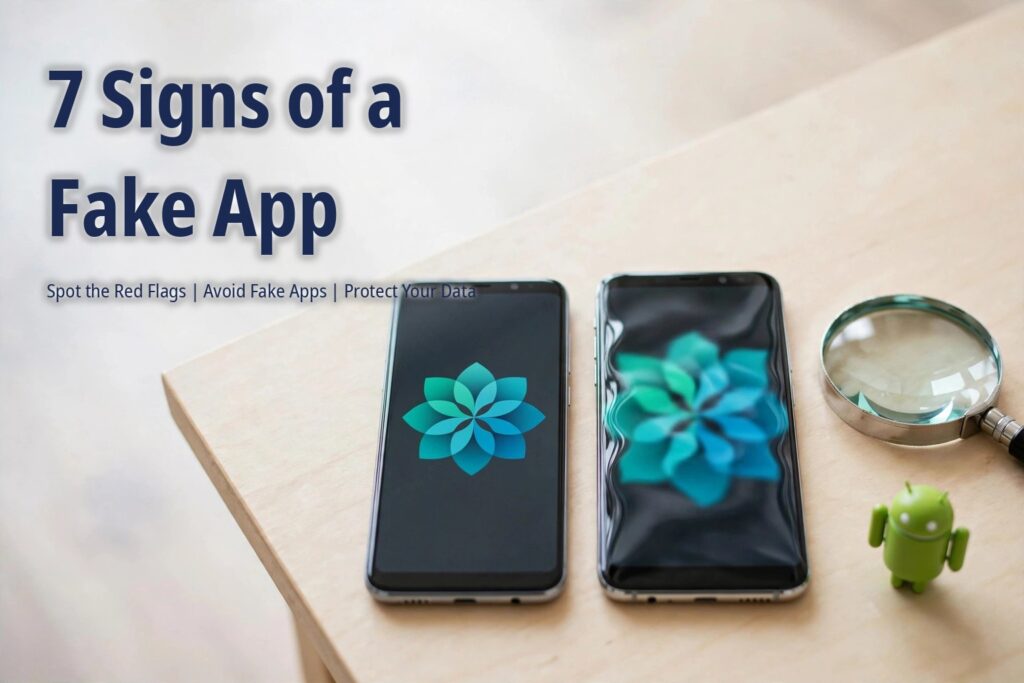
Fake Android apps are one of the most common mobile threats: copycats that mimic popular titles to steal logins, harvest data, or flood your phone with ads. Learning how to spot fake android apps before you tap install protects your accounts, your money, and your privacy. Below are the seven warning signs security experts look for — train your eye on them and fakes become easy to spot.
How to Spot Fake Android Apps: 7 Warning Signs
1. The developer name does not match
This is the single most reliable check. Every legitimate app lists its developer — and scammers cannot use the real company’s developer account. Before installing, tap the developer name and ask: does this match the official company? A banking app published by “FinTech Solutions LLC” instead of the actual bank, or a game from “Studio Games 2024” instead of the known studio, is a fake. When in doubt, find the official app link on the company’s own website and compare.
2. The icon is a near-copy, not an exact match
Fake apps use icons that look right at a glance but differ on close inspection: slightly wrong colors, stretched proportions, missing details, or a different background shape. Open the official app’s Play Store listing (linked from the developer’s website) side by side with the suspect listing. If the icons are merely similar rather than identical, walk away.
3. The app name has odd additions
Clones often tweak the name just enough to seem legitimate: “WhatsApp Plus Messenger”, “Spotify Music Free 2026”, or the real name followed by words like Pro, Free, Plus, or a year. The official app almost never needs those qualifiers in its store title. Treat any embellished name as guilty until proven innocent.
4. Review patterns look manipulated
Read the reviews critically. Warning patterns include: a flood of generic five-star reviews (“good app”, “nice”) posted within days of each other, detailed one-star reviews describing scams or data theft, and reviewers whose other reviews are all for unrelated clone apps. A genuine popular app has a natural mix — mostly positive, with specific complaints about real features.
5. Permission requests make no sense
A wallpaper app has no business reading your SMS. A calculator does not need your contacts. Before installing, review every permission the app requests and ask whether each one serves the app’s stated purpose. Permission abuse is the clearest behavioral red flag — our guide to dangerous app permissions to never allow lists exactly which requests should stop you cold.
6. The listing is sloppy
Legitimate developers proofread. Fake listings are full of tells: machine-translated descriptions, stock screenshots stolen from the real app, no official website link (or a link to a free blog domain), and a recently created developer account with only one or two apps. Professional presentation is not proof of legitimacy — but unprofessional presentation is strong evidence of the opposite.
7. It asks you to sideload instead of using the Play Store
Be deeply suspicious of any app — especially one impersonating a well-known brand — that tells you to download its APK from a website instead of the Play Store. There are legitimate reasons to sideload, but a famous app steering you away from its official store listing is a classic malware-distribution trick. The real app is on the Play Store; the “direct download” is the trap.
What to Do If You Already Installed a Fake App
- Uninstall it immediately. Long-press the icon, tap App info, then Uninstall.
- Revoke its permissions first if it resists uninstallation. In App info, open Permissions and deny everything, then uninstall.
- Change passwords for any accounts you logged into through the fake app — especially banking and email. Enable two-factor authentication everywhere.
- Run a security scan. Open Settings > Security > Google Play Protect and tap Scan, and consider uploading any related APK files to VirusTotal as described in our guide on how to scan APK files for viruses.
- Check for device-admin access. Some fakes grant themselves device administrator rights to block uninstallation. Go to Settings > Security > Device admin apps and deactivate anything suspicious before uninstalling.
How to Spot Fake Android Apps Faster: Build a Verification Habit
Spotting fakes gets faster with practice. Before installing anything unfamiliar, run this 30-second routine: confirm the developer name, compare the icon with the official listing, skim the reviews for manipulation patterns, and review the permissions. Combined with the file-level checks in our guide on whether APK files are safe, this routine blocks nearly every fake-app attack — and it is worth teaching to family members, who are the most common targets.
Frequently Asked Questions
Can fake apps appear on the Google Play Store?
Yes, occasionally. Google removes thousands of malicious apps every year, but some slip through initially. That is why you should verify the developer name and reviews even inside the Play Store — and why comparing sideloading vs Google Play on safety is more nuanced than “store equals safe”.
Are apps with “Free” or “Pro” in the name always fake?
Not always, but it is a strong warning sign when the official app does not use that name. Verify through the developer’s official website before installing.
What is the most dangerous thing a fake app can do?
Credential theft and financial fraud top the list — fake banking and payment apps exist specifically to capture logins. Spyware-style fakes can also harvest messages, photos, and location data.
Should I report a fake app?
Yes. On the Play Store listing, tap the three-dot menu and select Flag as inappropriate. Reporting protects other users and gets the fake removed faster.
Final Thoughts
Mastering how to spot fake android apps comes down to one principle: verify identity before granting trust. Check the developer, scrutinize the icon and name, read reviews skeptically, and interrogate every permission. These seven signs take seconds to check and stop the vast majority of copycat attacks — pair them with proper APK signature verification for sideloaded files, and your phone stays genuinely secure.